CSV Export File Sample
CSV is the simplest format we export. It opens in Excel, Google Sheets and LibreOffice, and almost every ecommerce platform, database or script can read it. If you are not sure which format to pick, start with CSV.
Download
Download CSV sample WooCommerce import CSV Shopify import CSV
The samples contain 5 demo products from a small clothing store: simple products, products with variants (color and size), a sale price and one item that is out of stock. Real exports have exactly the same columns, only with more rows.
How the file is built
One row is one product. If a product has variants, it gets one row per variant, and the product columns are repeated on each of these rows. So a t-shirt in 2 colors and 2 sizes takes 4 rows. This makes the file easy to filter: you can sort by variant SKU, hide out of stock rows or sum the stock without any formulas across columns.
Technical details:
- Encoding is UTF-8 with BOM, so Excel shows accents and non-Latin characters correctly.
- Separator is a comma. Fields with commas, quotes or line breaks are put in double quotes.
- Lists inside one cell (categories, images) are separated with " | ".
- Prices use a dot as the decimal separator, without the currency sign. The currency is in its own column.
Columns
| Column | What it contains |
|---|---|
| id, sku, name | Product id on the source site, its SKU and title |
| regular_price, sale_price, currency | Normal price, discounted price (empty if there is no sale) and currency code |
| in_stock, stock_status | Availability as shown on the site |
| categories, category_ids | Full category path, for example "Clothing | T-Shirts" |
| brand, product_type, tags | Brand or manufacturer and other labels, when the site has them |
| attributes | Plain features like "Material: 100% cotton" |
| variation_options | All variant options of the product, for example "Color: White, Black; Size: M, L" |
| images | Links to all product images, the main image first |
| short_description, description | Descriptions, the full one keeps its HTML |
| rating, reviews, url | Average rating, number of reviews and the product page link |
| variation_* | Variant id, SKU, options, prices, stock, image, barcode and weight |
Screenshots below show the same structure in an older export, split by sections.
Standard fields
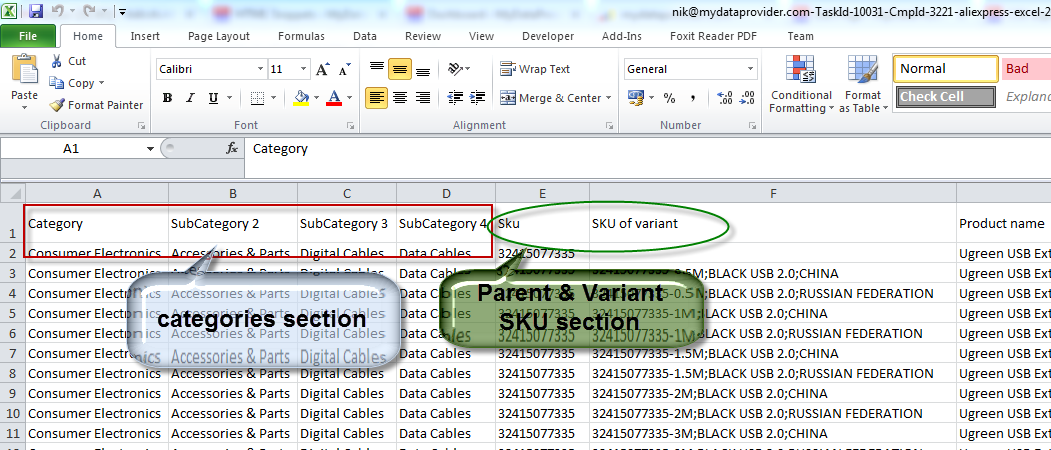
Categories

Description and weight

Images and product URLs

Variant options
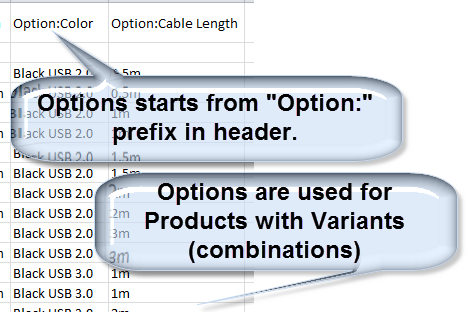
Opening the file in Excel
Double click usually works. If you see all data in one column or broken characters, open Excel first and use Data > From Text/CSV, then choose UTF-8 and comma as the delimiter. More details are in our note on how to open a CSV file. If you plan to work in Excel anyway, the Excel export saves you this step.
Importing into a store
For WooCommerce and Shopify use the import files above, not the general CSV. Their columns already match the built-in importers: WooCommerce (Products > Import) and Shopify (Products > Import). Variants, images and categories are created on import. For PrestaShop, OpenCart and Magento the XML export is usually the better choice.
Want to see your own data in this format? Paste a store link into one of our free online exporters and download the CSV in a few minutes.
Have a scraping or integration task? Let our AI solve it.
Describe what data you need or which systems to connect — our AI builds and runs the scraper or integration for you. No coding required.
Free for 14 days, no card needed · already have an account?